ThreatZ TARA migration:
legacy files in, a reviewed project out.
To migrate a legacy TARA into ThreatZ, upload the spreadsheet or OpenXSAM file in the project import wizard. ThreatZ analyses it in the background in about 3–4 minutes, stages the result, and creates the project only after an analyst reviews and approves the staged data. The AI-assisted path runs the same importers through the ThreatZ MCP server from an AI client such as Claude Desktop or Claude Code: the client prepares, starts and reviews the import, and nothing is written until you approve it in ThreatZ.
01 · SUPPORTED INPUTS
What ThreatZ imports during a migration
Every importer is defined once in the ThreatZ importer registry, which also fixes the server-side size limit and whether the importer can run through MCP. Accepted files are checked by extension and by content signature before anything starts. The first two importers create a whole project from a legacy TARA; the rest bring architecture, signals, diagnostics, SBOMs, findings and compliance material into a project that already exists.
| Importer | Accepted files | What it creates | Max size | Runs via MCP |
|---|---|---|---|---|
| TARA spreadsheet (new project) | .xlsx .xls | A new project with the TARA entities found in the sheets, staged for review before it is created | 10 MB | Yes — the person who started it approves in ThreatZ |
| OpenXSAM model (new project) | .xsam .xml | A new project built from the OpenXSAM model; progress is polled until the job finishes | 50 MB | Yes — creation waits for your approval |
| Software architecture (ARXML / XMI) for a software unit | .arxml .xmi .xml | An architecture draft for a component's software unit, finalised and mapped to its SBOM | 10 MB | Yes |
| Enterprise Architect XMI (four-eyes staged import) | .xml .xmi | A staged architecture draft in the project; a lead approves and commits it in ThreatZ with a security-key step-up | 10 MB | Stage only — approval and commit happen in ThreatZ |
| MATLAB / Simulink System Composer model | .slx | A system model imported into the project once you confirm the review | 60 MB | Yes |
| Communication matrix (ARXML, DBC, LDF, VSS, VISS, VDM, S2DM) | .arxml .dbc .ldf .xml .vspec .json .yaml .yml .graphql .vdm .s2dm | Signals in the project model with a signal diff to review; optional asset recommendations | 100 MB | Yes |
| Diagnostic description (ODX / PDX / CDD) | .odx .pdx .cdd | Diagnostic services on a component; optional asset recommendations | 100 MB | Yes |
| SBOM for a software unit | .json .xml | An SBOM draft finalised onto a software unit, then sent to the central scan | 50 MB | Yes |
| SCA / SAST / binary findings | .json .sarif .xml | Findings staged against an SBOM file, mapped to components, then committed | 50 MB | Yes |
| Compliance custom template | .docx .xlsx .pdf | A custom compliance template that waits for a second person's approval | 25 MB | Upload and review only — approval needs a second person in ThreatZ |
| Work-product item definition | .json .xmi .xml .xlsx .docx | A staged item definition for a work product, approved or rejected per staging | 10 MB | Yes |
Size limits are the server's, not the upload widget's. For connectors that are not file imports, see Integrations.
02 · THE MIGRATION WORKFLOW
Upload, analyse, stage, approve, commit
This is the path a TARA spreadsheet takes. The project-scoped importers follow the same pattern — analyse, review, confirm — with fewer phases.
Upload
On the Projects page choose Import instead of New Project, or start from a component in Vehicle Modeling with Import Legacy Project or Import OpenXSAM — the new project is then linked to that component and its risks roll up into the program. ThreatZ checks the file type, the size limit and that the file is not empty before anything starts. Project names must be unique within a program.
Analysis, in the background
ThreatZ reads the file in four phases — Sheet Discovery → Relationship Mapping → Validation → Staging — and shows a "Step N of 4" indicator, a short note on the current phase and an elapsed-time counter. A legacy project usually takes about 3–4 minutes. You can switch tabs or work on something else; you stay signed in, the tab title flashes when the import is ready, and you can turn on a browser notification or a sound (off by default). "Working…" means a phase has no percentage to report, not that it is stuck.
Staging preview
The result is held in a staging area, not in your project graph. It appears on the Projects page under Pending imports until someone decides on it, so an import you started this morning is still there this afternoon. Imports started by an AI client carry an Initiated via AI client badge.
Analyst review and approval
Open the staged content and compare it with the source: entity counts, names, the relationships between assets, damage scenarios, threat scenarios and controls. Approve creates the project. Reject discards the staged data. Cancel stops an import that is still running. Only the person who started the import can approve, reject or cancel it.
Commit to the graph
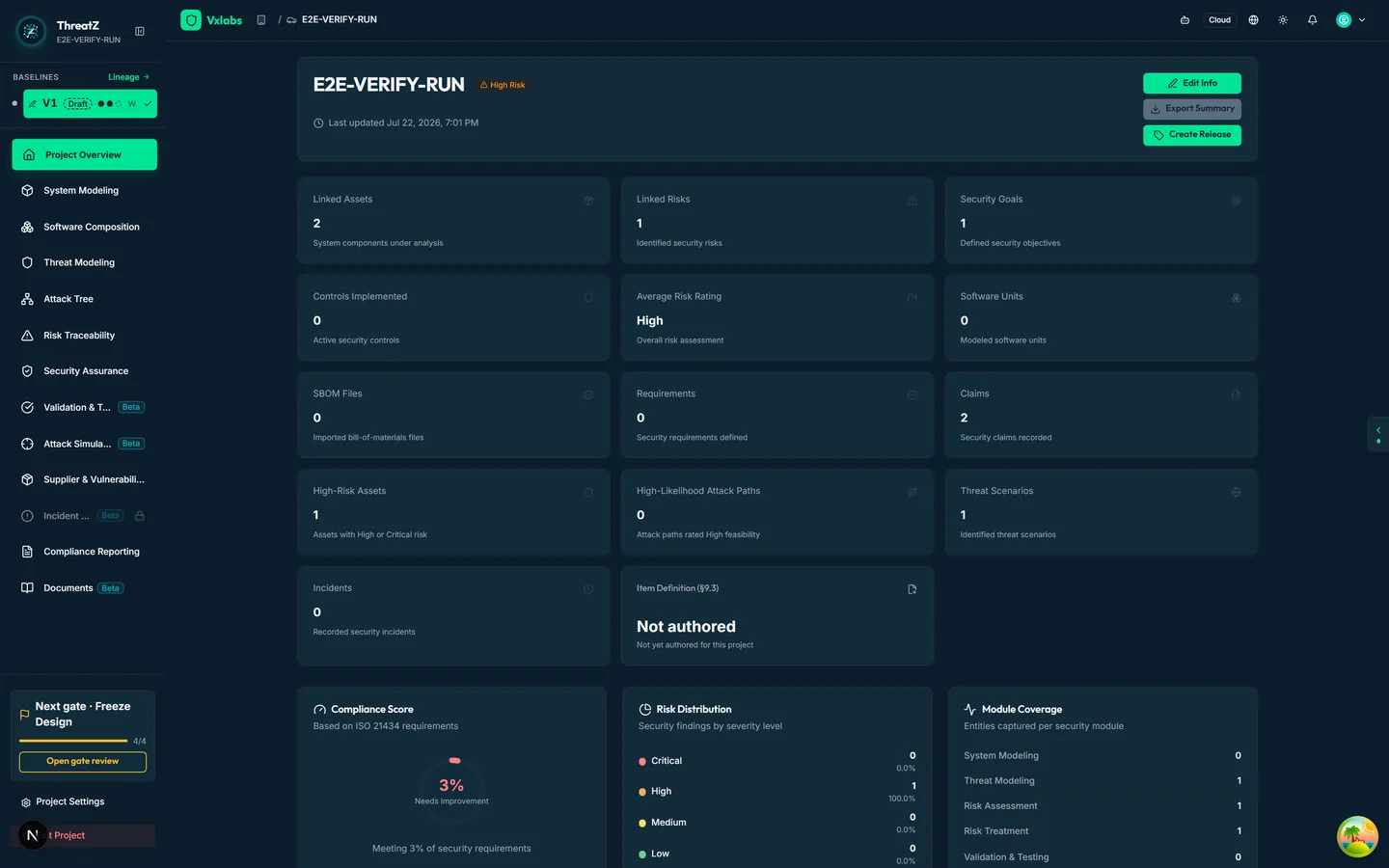
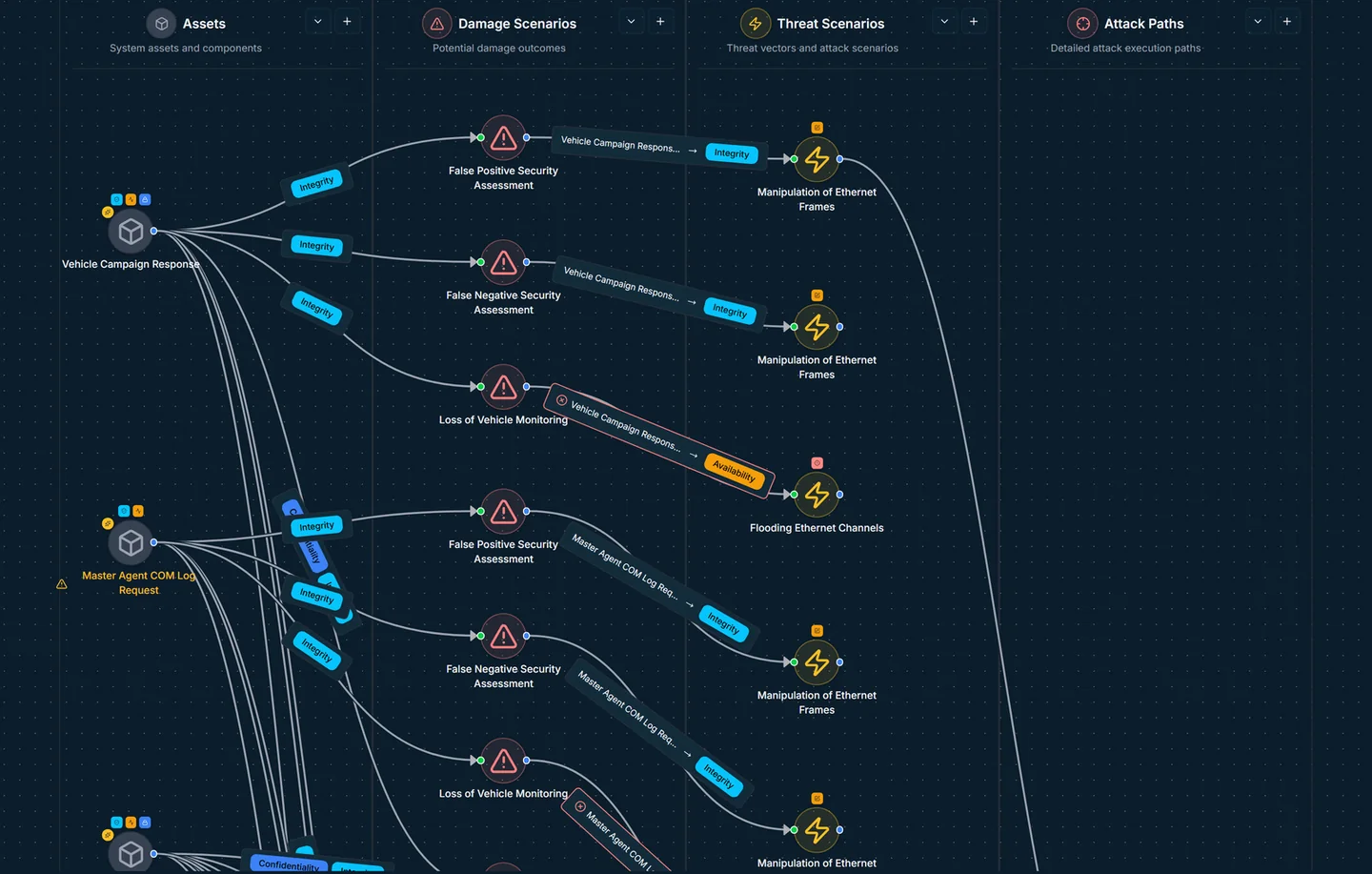
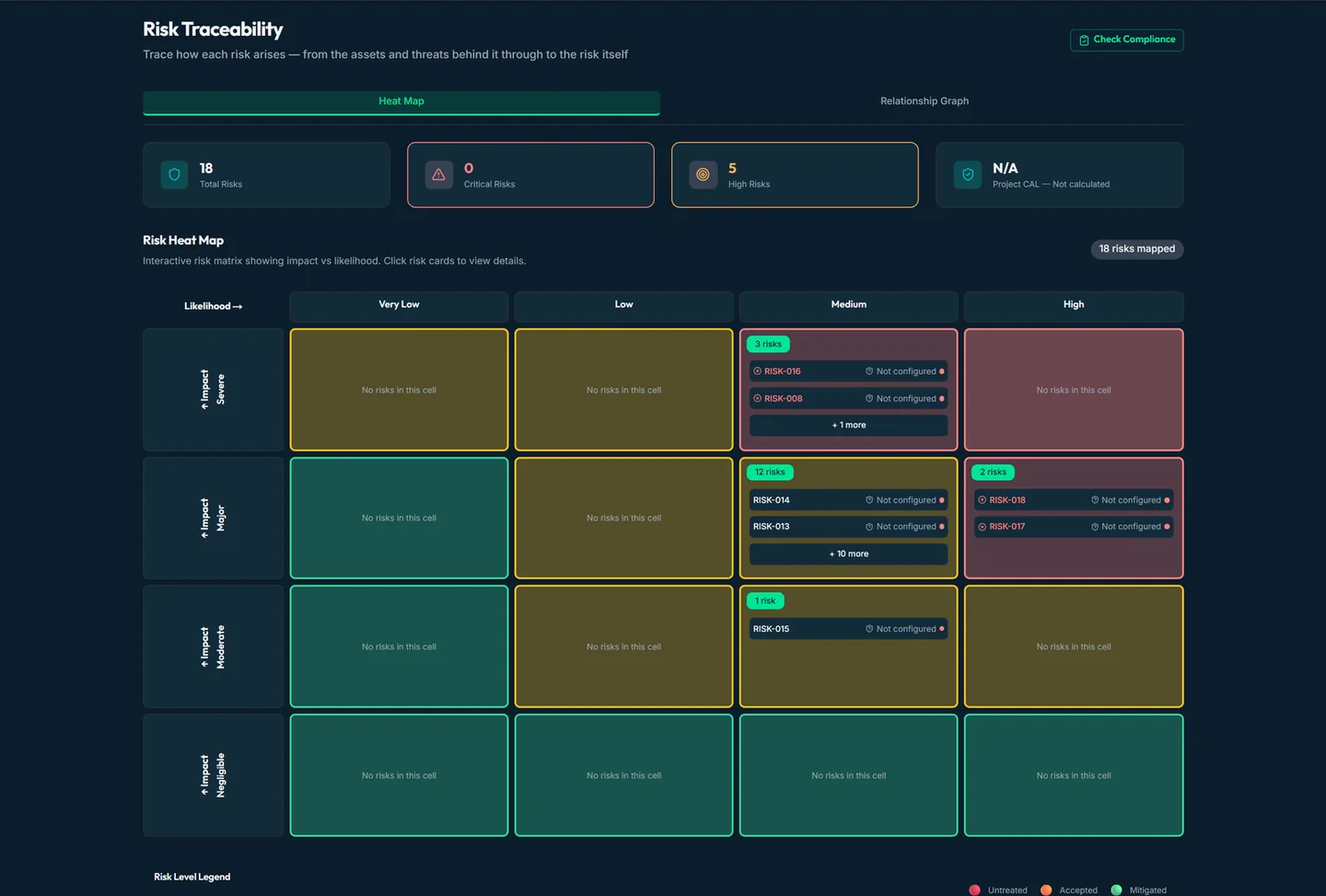
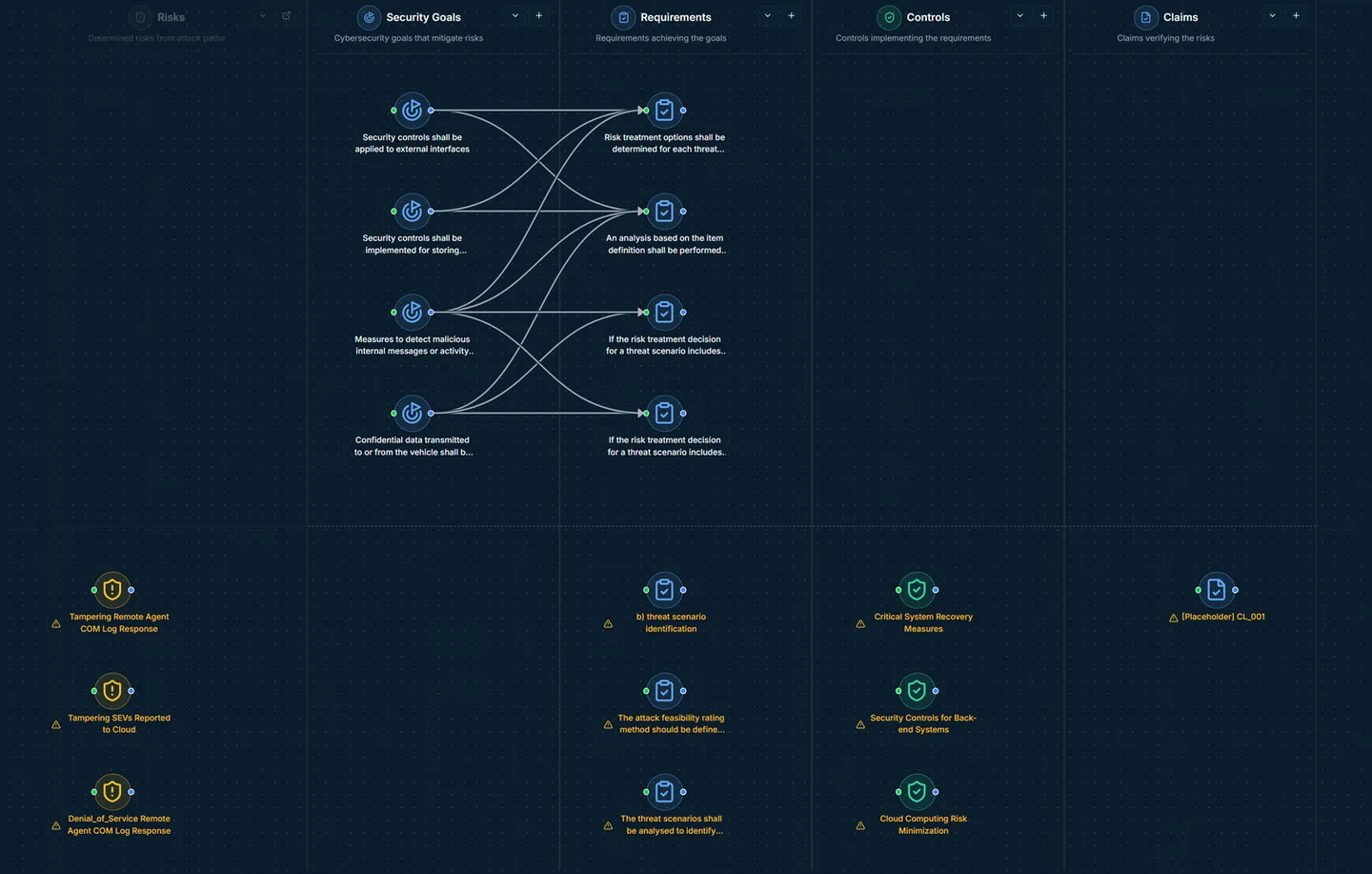
On approval ThreatZ writes the project in one all-or-nothing commit — either the whole project is created or nothing is. The approval is claimed once, so a repeated approve cannot create two projects. The result opens like any other ThreatZ project: threat graph, risk heat map, requirements, ready for the threat and risk work that follows a migration.
03 · AI-ASSISTED MIGRATION VIA MCP
Let an AI client run the import. You keep the final say.
ThreatZ ships an MCP server. An AI client such as Claude Desktop or Claude Code connects through it and works as you: it can read what you can read and, if your organization allows it, run the importers above. The AI client never approves anything; a step that would create, replace or delete data waits for you in ThreatZ. This is a different thing from the in-product ThreatZ AI recommender and assistant, which proposes threats and controls inside a project.
What the AI client can do
- Answer questions about live ThreatZ data you may see: risks above tolerance, open findings, compliance status.
- Run an import for you — a TARA spreadsheet, an SBOM, an architecture model, a communication matrix — following the guided import_data flow.
- Pass a file from your workspace (local client) or ask you to upload it on a ThreatZ page where you confirm its name, size and SHA-256 (hosted client).
It can never change users, roles or settings, approve reviews or risk acceptances, read the audit trail or raw files, use remote URLs as import sources, or approve its own requests.
The import sequence
- prepare — fetch the valid values (levels, policies, users as id and name) and the scope. No invented ids.
- start — pass the file by reference, never pasted contents.
- status — poll until the stage changes. APPROVAL_PENDING means the client shows you the approval link and waits.
- review — read what was staged. Imported text is marked untrusted; the client must not follow instructions found in it and must flag anything suspect.
- resolve — only when the review asks for decisions such as mappings or conflicts.
- decide — commit, reject or cancel. The import counts as done only when ThreatZ reports it committed. If you decline, nothing was written.
Administrator controls
- Access is Off, Read only or Read and import, set under Settings → Integrations → AI clients after accepting a data-sharing statement.
- Per-importer switches by area; importers with a large blast radius are off by default.
- Excluded projects that AI clients can never open, read or import into.
- Capability areas and individual MCP tools can be turned off.
- Revoke one client from your profile, or Revoke all sessions; turning access off signs every AI client out.
- The licence must include API access. If it loses it, connected clients are refused on their next call. See Pricing.
Approval and upload links last 15 minutes; an approval proof is valid for 5 minutes and one use. Data your AI client reads goes to the model provider configured in that client. Air-gapped installations use the local server with a model inside your network — see the Trust Center.
04 · ANALYST CONFIRMATION AND TRACEABILITY
Nothing reaches the graph without a named decision
A migration is an audit event in its own right. ThreatZ records who started it, what was staged, who decided and when — whether the import came from the wizard or from an AI client.
Staging gate
The staged payload is kept verbatim with a canonical hash, and is written to the project graph only after an approve decision. A rejected import leaves no project behind.
Approve, reject, cancel
Three explicit actions, bound to the person who started the import. Cancel is guarded so it cannot overwrite a result that completed a moment earlier.
Audit events
Every state transition — received, staged, approved, rejected, cancelled, committed — is an event in the organization's tamper-evident audit trail. AI client activity (connections, importer steps, approvals, uploads, refusals with the reason) is listed separately for administrators.
Pseudonymisation
VINs, e-mail addresses and person names detected in import metadata are replaced with per-tenant pseudonyms before the import is recorded in the audit trail. VIN and e-mail detection is high-confidence; person-name detection is best-effort.
Pending imports
Imports still running or awaiting a decision are listed on the Projects page. Open one to review, approve, reject or cancel — the same controls as in the wizard.
State history
Each import keeps an append-only history of its states, including Cancelled as a terminal state. An import orphaned by a restart is recovered and named as such, not silently lost.
05 · VALIDATION AND LIMITATIONS
What ThreatZ checks, and what it does not do
Checked before and during an import
- File extension and content signature must match one importer; a mismatch is refused with a message naming the accepted types.
- Size limits from the registry: 10 MB for TARA spreadsheets, ARXML/XMI architecture and work-product definitions; 25 MB for compliance templates; 50 MB for OpenXSAM, SBOMs and findings; 60 MB for System Composer; 100 MB for communication matrices and diagnostic descriptions.
- Empty files are refused.
- Text that came from an imported file is treated as untrusted data, never as instructions — in the staging review and in anything an AI client reads.
- Ids for levels, policies, users and departments must come from ThreatZ; an AI client is told never to invent them.
Not done, by design
- One importer per file. A spreadsheet that mixes a TARA with an SBOM is two files.
- The TARA spreadsheet and OpenXSAM importers create a new project. There is no automatic merge into an existing project.
- Formats not in the registry are not imported. No promise is made about a tool export the table above does not list.
- AI clients cannot use remote URLs as import sources, and cross-tenant transfer is not available to them in this version.
- Some decisions stay in ThreatZ even when an AI client started the import: approvals that need a second person or a security key, and custom compliance template decisions.
- An import does not decide anything for you. It stages what the file says; the analyst decides whether that becomes a project.
06 · WORKED EXAMPLE
A Tier-1 ECU TARA spreadsheet, start to finish
An illustrative run. The numbers below are made up to show the shape of a typical body-control-module TARA, not measurements from a customer file.
- The file. BCM_TARA_rev4.xlsx, 2.1 MB, three sheets: Assets, Damage & threat scenarios, Controls & requirements. A "Responsible" column holds engineer names.
- Upload. The analyst picks Import on the Projects page. Type, size and emptiness pass; the import starts and the analyst goes back to a review in another tab.
- Analysis. Sheet Discovery finds the three sheets. Relationship Mapping links damage scenarios to the assets they name and threat scenarios to damage scenarios. Validation runs over what was found. Staging writes the result to the staging area. Elapsed: about three minutes.
- Review. The staged preview shows 24 assets, 31 damage scenarios, 28 threat scenarios, 6 attack paths, 7 controls and 15 requirements. The analyst checks the counts against the sheets and spot-checks two threat scenarios whose asset link looked ambiguous in the source.
- Decision. The analyst approves. The project is created in one commit and opens with its threat graph, heat map and requirements. The import, its staging and the approval are now entries in the audit trail; the engineer names in the "Responsible" column were pseudonymised in those records.
- Same run through an AI client. The engineer asks their AI client to import the file. The client runs prepare and start, reports APPROVAL_PENDING with a link, and waits. The engineer opens the link, sees importer, operation and target, and approves. The client reports the project as created only once ThreatZ says committed.
07 · AFTER THE IMPORT
What the migrated project looks like
These are the standard ThreatZ project views a migrated TARA lands in. They are not screenshots of the import wizard.
08 · FAQ
Questions engineers ask before a migration
Does the TARA spreadsheet importer merge into an existing project?
No. The TARA spreadsheet importer and the OpenXSAM importer always create a new project. There is no automatic merge into a project that already exists. To bring content into an existing project, use the project-scoped importers listed above (software architecture, System Composer model, communication matrix, diagnostic description, SBOM, findings, work-product item definition), each of which stages its result for review first.
Can an AI client approve a migration on its own?
No. The AI client works with your permissions through the ThreatZ MCP server, but any step that creates, replaces or deletes data stops at APPROVAL_PENDING and shows you a link to an approval page in ThreatZ. You approve or decline there. Each approval is valid once, for that one step, and the client cannot approve its own requests.
Which file formats can I migrate into ThreatZ?
For a whole TARA: .xlsx or .xls spreadsheets and .xsam or .xml OpenXSAM models. Into an existing project: ARXML and XMI architecture, Enterprise Architect XMI, System Composer .slx, communication matrices (ARXML, DBC, LDF, VSS, VDM, S2DM), ODX/PDX/CDD diagnostics, SBOMs in JSON or XML, SARIF findings, and .docx, .xlsx or .pdf templates. Formats outside the importer registry are not supported.
How long does a legacy project import take, and do I have to wait on the screen?
A legacy project import usually takes about three to four minutes. It runs in the background, so you can switch tabs or work on something else while staying signed in. The wizard shows which of the four phases is running and how long it has been going; the tab title flashes when the staged result is ready, and you can turn on a browser notification.
What happens to personal data found in the legacy file?
VINs, e-mail addresses and person names detected in the import metadata are replaced with pseudonyms before the import is recorded in the audit trail. The pseudonymisation key is per tenant, so the same value maps to the same token across imports in your organization. Person-name detection is best-effort, so review the staged preview before approving.
09 · NEXT STEP
Bring one of your own TARA files to the walkthrough
We run your spreadsheet or OpenXSAM model through the import on a live build, stop at the staging preview, and go through the approve, reject and cancel path with the people who will own the migration. If an AI client is part of your workflow, we show the MCP path on the same file. Nothing is written to a project unless you approve it.